Word to PDF Converter
Pequi AppsBusiness
4.2617.00 Reviews
- Version
- 7.8.3
- Installs
- 10.00M
- Age Rating
- Everyone
Screenshots
Our Review of Word to PDF Converter
 Analysis by Appyee
When I need to turn a Word file into something that looks finished and easy to share, I usually want the shortest route possible. That is the role Word to PDF Converter tries to fill: it is a free business app from Pequi Apps focused on converting DOC and DOCX documents into PDF files on a mobile device. I see it as a practical utility rather than a complete office suite, and that distinction matters before you install it.
The app makes the most sense for people who already have a document and need a PDF quickly. A student sending an assignment, a freelancer preparing an invoice, or someone forwarding a signed-looking report from a phone can benefit from that narrow focus. It is available for Everyone, has a 4.2 average from roughly 87 thousand ratings, and has passed 10 million installs, so it is clearly aimed at a broad audience rather than a specialist document team.
My overall view is positive, but conditional: this is best when speed and a simple conversion are more important than advanced document control. If you need to edit layouts, collaborate with colleagues, compare revisions, or manage a large archive, a full office application or a desktop workflow will usually be a better fit.
How I would decide whether it belongs on your phone
I’d judge whether this belongs on your phone by how often a Word file arrives when you’re away from your usual editing setup. If that happens occasionally, a focused converter can save a detour; if it happens every day, I’d weigh it against the office tools you already rely on. The deciding point is whether a quick format change is enough, which is why its strongest use cases matter.
Start with the document, not the app
The first question I would ask is what kind of file you normally handle. If your source documents are ordinary DOC or DOCX files and your goal is a shareable PDF, this app is directly aligned with that task. If you mainly work with spreadsheets, presentations, scanned pages, or files that need optical character recognition, you should look at a broader document tool instead.
That sounds obvious, but it prevents a common mistake. A converter is not automatically a replacement for Microsoft Word, Google Docs, or a mobile office suite. Those products are designed around writing and editing. This app is more useful at the handoff stage, when the wording is already finished and you want a fixed-format copy.
Check how much layout precision you need
Word documents can contain tables, page breaks, headers, footers, unusual fonts, images, and carefully positioned elements. A basic conversion may preserve a document well enough for an email attachment while still producing small differences from the original. For a casual letter, that may not matter. For a contract, a branded proposal, or a form with strict spacing, it matters a great deal.
I would therefore preview the PDF before sending it, especially when the file includes a table or a graphic close to the page edge. This is one of the most useful habits with any mobile converter: do not assume that a successful conversion means a visually perfect conversion. Open the result, inspect every page, and check the places where Word documents are most likely to shift.
Think about the destination of the file
A PDF is often chosen because the recipient should see a stable version rather than an editable working file. That makes the app useful for sending a final résumé, a school paper, a meeting handout, or a simple business document. It is less suitable when the recipient still needs to make changes, leave comments, or continue editing the source.
There is also a practical question about organization. Converting a file is only half the job; you still need to know where the result was saved and how you will attach or share it. On a phone, I recommend using a clear filename before conversion and checking the output immediately afterward. That small step avoids sending an older version with a similar name, which is an easy mistake when several documents are stored locally.
Consider whether free access is enough
The app is free to install, which makes it easy to try for an occasional conversion. It also includes in-app purchases ranging from $0.99 to $124.99 per item. Because of that, I would pay attention to the screens shown during use and decide whether the basic workflow meets your needs before paying for anything.
For someone who converts a document once in a while, the free route may be all that is needed. A person who handles documents every day should compare the total cost and convenience with tools they already use, including office software, cloud services, or a computer-based converter. The cheapest choice is not always the one that saves the most time.
Remember the operating-system requirement
The current version is 7.8.3 and requires operating system version 11 or later. That is worth checking before you plan a workflow around it, particularly if you keep an older phone for work or use a device with limited update support. A converter is only useful when it is available on the device where the document arrives.
Where Word to PDF Converter is most convincing
I find this app most convincing when the document is already finished and the only remaining job is to make it easier to share. That keeps the workflow small and avoids opening an editing suite for a one-step task. The trade-off becomes clearer with real examples: a short proposal is a natural fit, while a layout-sensitive document calls for more careful checking.
A focused solution for the last step
The strongest part of this app is its focus. Instead of asking me to learn a large editing environment, it addresses a familiar need: take a Word document and produce a PDF. That narrow purpose can be an advantage when I am working from a phone and do not want to open a full desktop-style suite just to complete one conversion.
I find this especially helpful in situations where the document was created elsewhere. Perhaps a colleague sends a DOCX through a messaging app, or I download a report from email and need to forward it to someone who expects PDF. In that situation, the app can act as a bridge between the editable source and the final attachment.
A realistic workday example
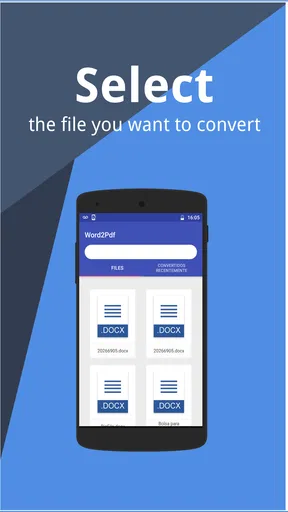
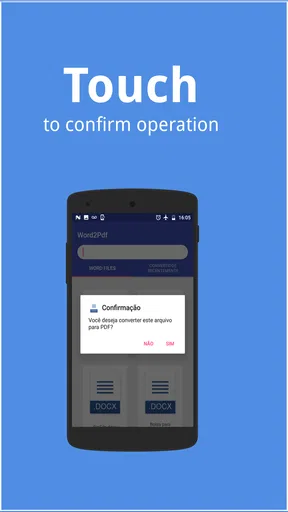
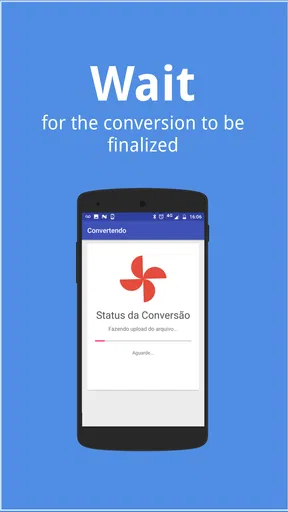
Imagine I am leaving a meeting and remember that I promised to send a one-page proposal before the end of the day. The Word file is already on my phone, but I do not want to send the editable version because the recipient should read it as a finished document. I open the converter, select the file, create the PDF, inspect the page, and attach the result to my message.
That workflow is not glamorous, but it is exactly where a dedicated converter earns its place. I am not trying to rewrite the proposal, redesign it, or collaborate on it. I am simply changing the delivery format while away from my computer. For occasional mobile work, that convenience can be more valuable than a long list of advanced features.
Useful for separating working files from final copies
There is a less obvious benefit to converting at the end of a task: it creates a clear distinction between the editable source and the version intended for distribution. I can keep the DOCX for future changes and use the PDF when I want the recipient to see a stable snapshot.
That separation is useful for invoices, application letters, event information, and internal summaries. It also reduces the chance that someone accidentally changes the document before forwarding it. The PDF is not a security guarantee, and it should not be treated as one, but it is a more appropriate sharing format than an unfinished Word file in many everyday cases.
Good fit for occasional users
The broad adoption and Everyone age rating make the app approachable for ordinary household and workplace tasks. I would recommend it to a person who does not regularly work with document software but sometimes receives a Word file and needs a PDF without learning a complicated process.
It may also suit small business owners who handle simple paperwork from a phone. A quote, a short service description, or a basic client letter can often be converted without moving the file to a computer. The important word is “simple.” The more a document depends on exact typography, complex tables, or unusual design elements, the more carefully I would verify the output.
Three habits that make the workflow safer
First, I would convert a copy rather than treating the PDF as a replacement for the original. The DOC or DOCX remains useful if a name, date, amount, or paragraph needs correcting later. Keeping both versions avoids rebuilding the document from scratch.
Second, I would inspect the first page and the last page every time. Problems with page breaks, blank pages, or footer placement often become visible there. For longer documents, I would also scan pages containing tables or images instead of checking only the opening page.
Third, I would use a filename that includes the document’s purpose and status before sharing it. “Proposal-final” is more helpful than a generic converted filename, particularly when several versions are stored on a phone. These steps are not flashy features, but they make a simple converter much more dependable in real use.
What the rating and scale suggest, and what they do not
A 4.2 average and more than 10 million installs indicate that the app has found a substantial audience. I take that as a reason to consider it, not as proof that every conversion will be perfect. Ratings combine many kinds of users and documents, while my own needs may be more demanding than those of someone converting a short letter.
The developer, Pequi Apps, has kept the product centered on document conversion rather than presenting it as an all-purpose office replacement. That positioning helps set expectations. I would judge it by how quickly and reliably it handles ordinary Word files, not by whether it can compete with a full professional publishing system.
Where the simple approach creates friction
The same focus that makes the app approachable can feel limiting when I need more control. A conversion tool is not the place I would expect to perform detailed editing, redesign a document, manage tracked changes, or build a reusable template library. If I discover a mistake after conversion, I would rather return to the original Word file and correct it there than try to treat the PDF as an editable document.
Layout-sensitive work also deserves caution. A file can look fine in Word and still need a close inspection after conversion. Tables may be the most obvious test, but images, page numbering, and spacing can also affect whether the result is ready to send. For anything legally, financially, or professionally important, I would never skip the preview step.
When another category is a better choice
If I am still writing the document, I would choose an office editor first. It gives me the tools to revise wording, adjust formatting, and keep the source organized before exporting. If I am scanning paper pages, I would look for a scanner app with text recognition. If I need signatures, comments, page rearrangement, or form filling, a dedicated PDF editor may be more appropriate.
Cloud-based document platforms can also be better for teams. Their main advantage is not necessarily conversion itself, but shared access, simultaneous editing, and version history. A standalone converter makes more sense when one person owns the document and simply needs a different output format.
Desktop software remains preferable for high-stakes publishing. On a larger screen, it is easier to compare the original and converted files, correct page breaks, and manage complex layouts. I would not move a long, design-heavy report to a phone merely because conversion is available there.
What switching really costs
Moving from a desktop workflow to a mobile converter saves the trip to a computer, but it can add a review step. On a small screen, checking every page is slower, and finding the correct source file may take more effort if your phone contains many downloads. The convenience is greatest when the document is already stored locally and needs no further editing.
Moving in the opposite direction, from this focused app to a full office suite, may give you more control but also introduces a heavier interface and a larger learning curve. You may gain editing, collaboration, and broader file support while losing the quick, single-purpose feeling that makes a converter attractive.
There is also a cost question. The app is free at its base price, but the presence of optional purchases means I would not assume that every advanced or repeated-use path is included without checking the in-app screens. For occasional work, trying the basic route first is sensible. For regular business use, compare the complete workflow rather than only the download price.
Who should install it
I would suggest this app to Android users on a compatible system who regularly receive DOC or DOCX files and occasionally need PDFs while away from a computer. It is particularly suitable for short business documents, school submissions, personal letters, and simple client communication.
I would also consider it for someone who values a direct tool and does not want to maintain a full office suite just for conversions. The app’s category, Business, reflects that practical use well: it is about getting a document into a more convenient format, not replacing every part of a document workflow.
Who should skip it
I would skip it if my main requirement were precise publishing, batch processing, collaborative editing, or advanced PDF manipulation. I would also hesitate if my phone does not meet the operating-system requirement or if most of my files are not Word documents.
People handling sensitive company material should make their decision based on their organization’s document-handling rules and preferred tools. I would not install a converter casually on a managed work device without checking those rules first. The app may be convenient, but convenience should not override a workplace’s requirements.
My recommendation after weighing the trade-offs
For the right task, I think Word to PDF Converter is a sensible utility to keep available. Its free entry point, focused purpose, and large user base make it easy to try, while the current 7.8.3 release gives users a clear version to look for on a compatible device. I would use it for quick, ordinary conversions and keep the original Word file safely stored.
My recommendation comes with one firm condition: treat the PDF as a final document only after checking it. Open the output, review the pages that contain tables or images, confirm the filename, and then share it. That routine handles the main weakness of mobile conversion without turning a simple task into a complicated project.
In short, I would choose this app when the decision is between a quick Word-to-PDF handoff and opening a much larger office workflow. I would choose something else when editing, collaboration, exact layout control, or specialized PDF work is the real priority. For occasional mobile conversions, it earns a place on my shortlist; for demanding document production, it is better viewed as one small tool in a larger process.
Verdict
Strengths of Word to PDF Converter
- Converts documents quickly without requiring a desktop computer.
- Supports sharing converted PDFs through email and other installed apps.
- Simple interface makes basic conversions easy for beginners.
- Useful for creating printable copies of Word files while traveling.
- Can help reduce the need for separate document-conversion software.
Limitations of Word to PDF Converter
- Advanced Word formatting may not appear perfectly in the final PDF.
- Large documents can take longer to process or share.
- Some features may require an internet connection or premium access.
- The app may include advertisements in the free version.
- Editing the original Word document is not possible inside the converter.
Similar Picks in This Category
View All
LinkedIn: Community & Network
LinkedIn3.8

Zoom Workplace
zoom.com4.1

Microsoft Teams
Microsoft Corporation4.6

Meta Business Suite
Meta Platforms, Inc.4.6

Webex Meetings
Cisco Systems, Inc.4.5

TeamViewer Remote Control
TeamViewer4.4
Frequently Asked Questions
What is Word to PDF Converter used for?
Word to PDF Converter is designed to transform editable Word documents, such as DOC and DOCX files, into PDF format. This can be useful when you need to share a document while preserving its layout, fonts, images, and page structure. After conversion, the PDF is generally easier to print, email, upload, or open on different devices without accidental editing.
Can Word to PDF Converter convert documents without an internet connection?
Offline availability depends on the specific version of Word to PDF Converter and how the application processes files. Some versions convert documents directly on the device, while others may upload files to an online conversion service. Before converting confidential documents, check the app’s privacy information and test whether airplane mode still allows conversion, as offline support can vary between Android and iOS releases.
Does the app preserve the original formatting of Word documents?
The application usually preserves the main elements of a Word document, including text, headings, images, tables, and page breaks. However, complex layouts, unusual fonts, embedded objects, tracked changes, or advanced Word features may not appear exactly as they did in the original file. It is a good idea to open the generated PDF and review every page before sharing or printing it.
Are there file size or document format limitations?
Word to PDF Converter commonly supports popular Word formats such as DOC and DOCX, but available formats, maximum file sizes, and page limits may differ depending on the app version or subscription plan. Large documents with many images can take longer to process and may require additional storage. Check the supported formats and limits in the app before downloading or converting important files.
Is Word to PDF Converter free to download and use?
The app may be free to download while offering optional purchases, advertising, or premium features. Basic conversion can sometimes be available without payment, whereas batch processing, ad removal, cloud integrations, or advanced export options may require a subscription or one-time purchase. Review the pricing details shown in the Google Play Store or App Store before starting a trial or conversion.
